


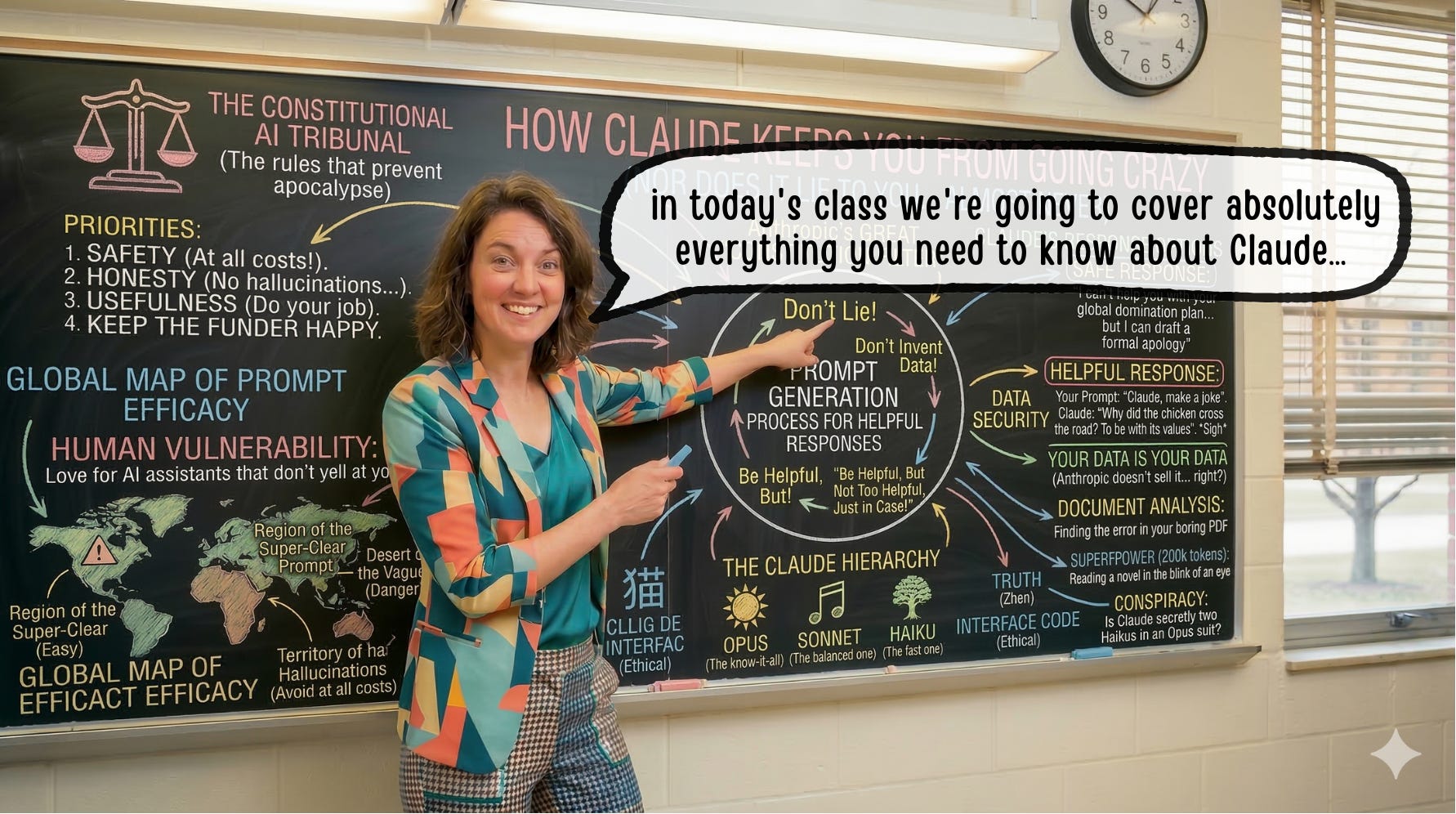
This is a post I’ve been wanting to write for a while, but the truth is that very few people used Claude, and even fewer listened when I talked about Anthropic’s assistant.
But things have changed, and now that Claude is trending (you know, the whole Pentagon stuff), I’m going to take advantage of the hype to write the ridiculously detailed guide to my favorite AI assistant.
This is going to be a long post, so crack open your first beer and let’s get started! 😉
What is Claude?
Claude is an AI assistant created by Anthropic. It works more or less like any other… except that, IMHO, it’s the best one out there.
You can use it on the web (claude.ai), though it also has desktop and smartphone apps. Go ahead and create an account so you can try things out as I walk you through this post. Don’t worry, the basic plan is free. Go on, I’ll wait.
Got it? Great, let’s keep going!
What Claude looks like
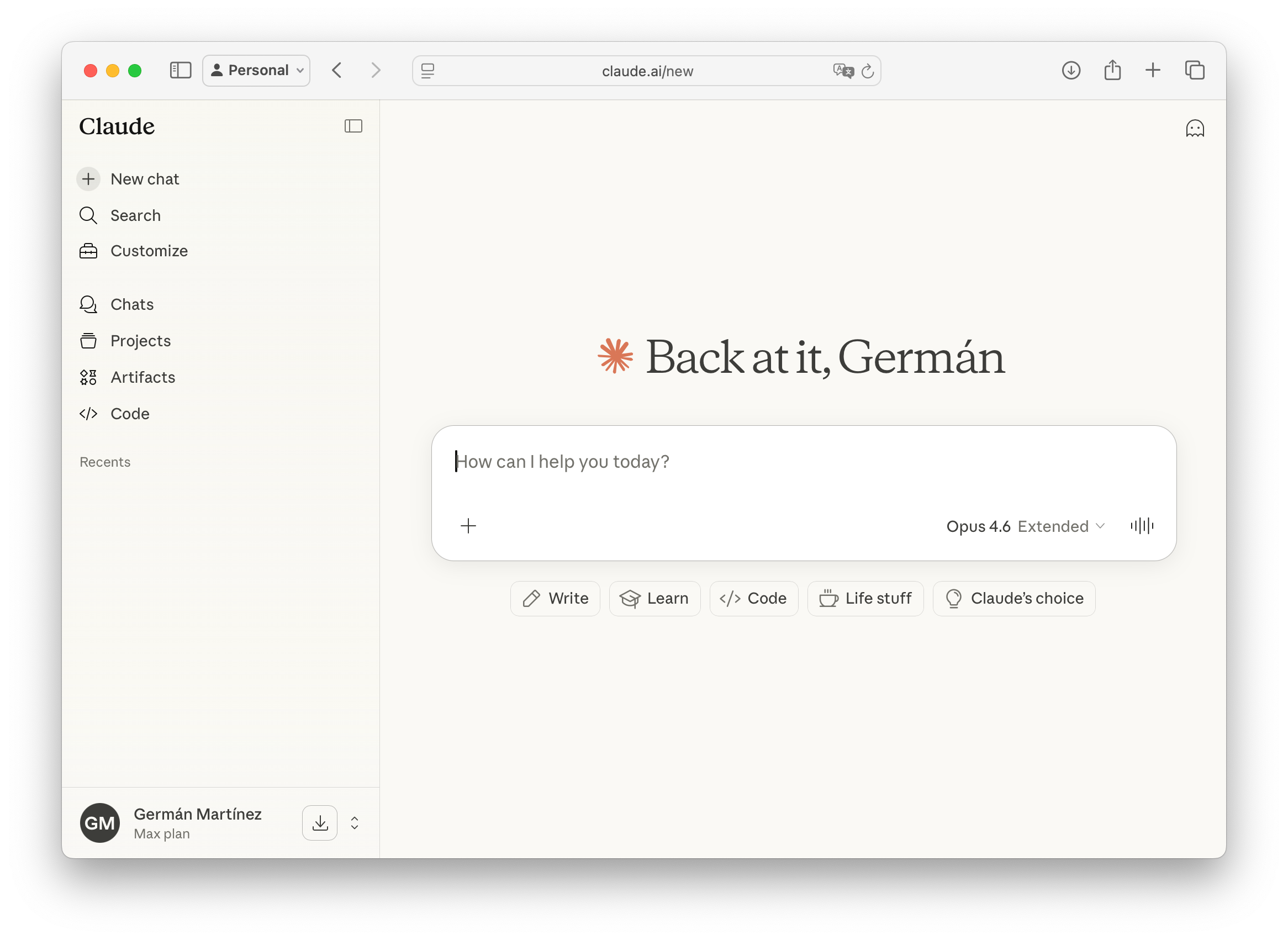
Now that you’re back (with your account, I assume), this is what you should be seeing on your screen. I’ll admit it’s not super impressive and it looks like any other AI assistant, just with better typography and color palette 😅.
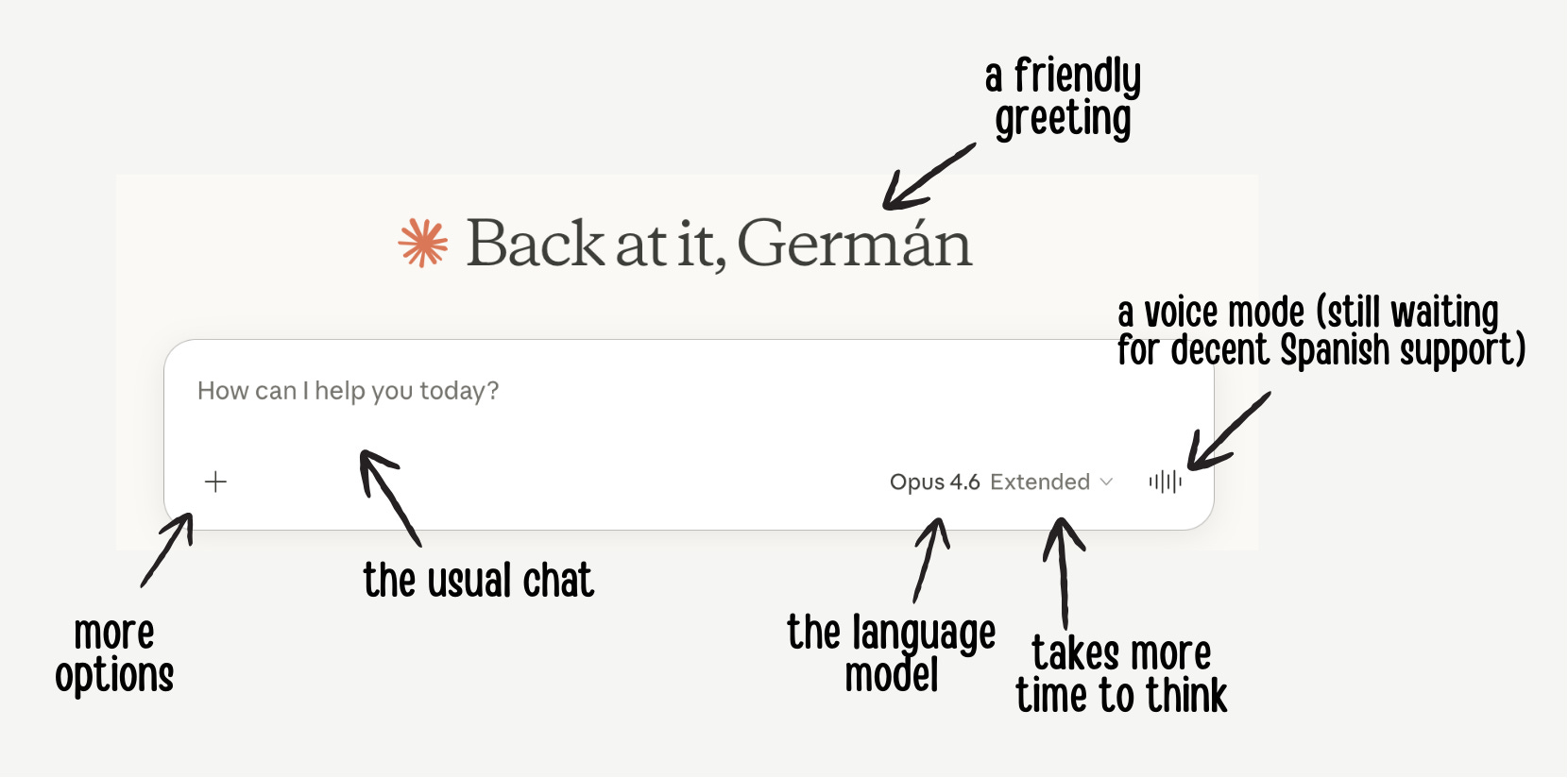
Now let's go through this interface piece by piece. I promise there will be surprises (hopefully).
Let’s start with the chat
This is where we’ll spend most of our time talking to Claude, so it’s the perfect place to begin.
As I’m sure you know, this is the core of your interactions with your assistant. In the chat window you type your text and you can also drag files and photos into the conversation. You type, your assistant responds, that’s it.
The first thing you’ll notice is the difference in the responses. And that’s exactly what I love about it: it responds better. I’ve always found it hard to describe why (maybe it’s just me) but it feels more human. It’s an assistant that actually tries to help you, not just agree with everything you say like cough cough, ChatGPT, cough cough.
Try it and I think you’ll agree with me.
Let’s move on to the “+” button you see at the bottom left.
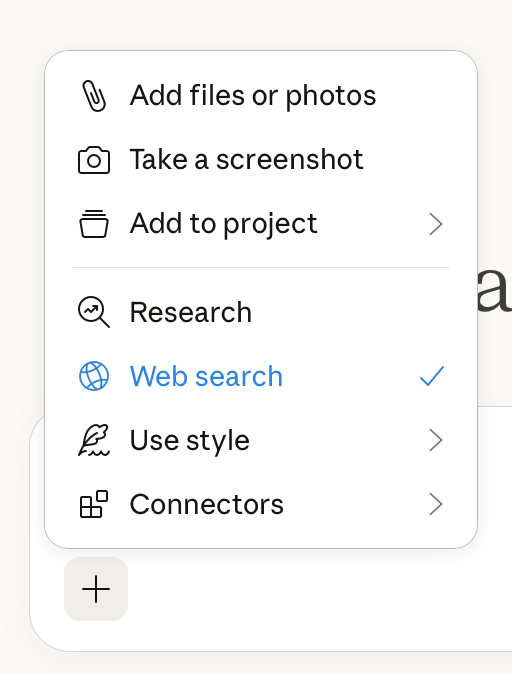
From top to bottom, you can:
Attach photos or files: I always do it by dragging them into the chat window, but I won’t judge you if you use this option. These files can’t be larger than 30MB each, and you can upload a maximum of 20 files per message.
When you upload a file, Claude can read it and even see the images and graphics inside it. But if it has more than 1,000 pages, Claude will only read the text. Solution: if your file has too many pages, split it up.
You can also take a screenshot and give it to Claude to analyze, no need to save the file in Paint first and then send it over (do people still do that?).
You can add the chat to a project… I’ll tell you later how those work, but if you’ve used them in ChatGPT, it’s pretty similar.
The research function lets you ask Claude to start investigating a topic. Claude will come up with a plan and ask you questions to better understand what you want. I love it because those questions come as a checklist-style form you can just click through. Once it has that information, it goes off and does the research across different sources (while you grab a coffee) and a few minutes later delivers it to you.
Web search can be toggled on and off from there. This one’s simple: if it’s on, it searches the Internet; if it’s off, it doesn’t.
You can also ask it to use a specific conversation style. By default it comes with Normal, Learning, Concise, Explanatory, Formal, and Informal styles. Don’t like any of them? No problem, you have the option to configure exactly how you want Claude to talk to you. To do it, all you need to do is give it examples of text showing how you want it to respond. That’s it.
Finally, there are connectors, which let you connect Claude to hundreds of external apps like Gmail, Google Docs, Google Calendar, Miro, Github, Slack, Canva, etc. It’s going to be hard not to find a connection to the tool you’re looking for. I love this feature. For example, the other day I connected it to a huge Miro board, asked it to make a summary and create a flow diagram. It did it without breaking a sweat. A-ma-zing.
Now let’s look at the bottom right. There you can, among other things, choose which language model you want to use.
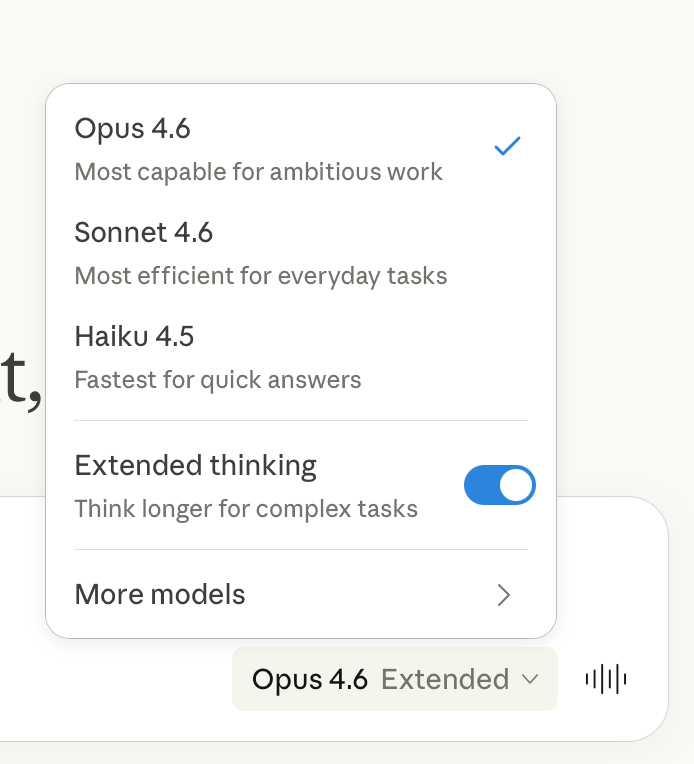
I think it’s time to tell you that Claude doesn’t have just one model. It has three, and the models you’ll see here depend on your plan.
The most powerful one is called Opus, and it’s for when you need Claude to really think deeply. Use it for complex analysis, multi-layered problems, when you want it to consider multiple perspectives. The catch with Opus is that you can hit your usage limit pretty quickly (I’ll tell you more about that later).
The middle-ground model is called Sonnet, and it’s the one you’ll probably use most of the time. It responds pretty fast and is very smart. Not as much as Opus, but it makes up for it with speed. Use it to help you think, analyze documents, create content. Let’s say it’s the one that gets you through the day-to-day.
The other model is Haiku, and it’s the fastest. It responds at the speed of light and is perfect for quick, direct questions, classifying information, short summaries, and things like that.
Any of these models can work with that “extended thinking” switch. What it basically does is put your assistant in a more contemplative mode so it thinks more deeply before responding.
If you look at the bottom right, you’ll notice an icon that looks like an audio signal. That’s voice mode, where you can talk to Claude. I’ll be honest: I don’t love it. First because it doesn’t work in Spanish, and second because compared to ChatGPT’s voice mode implementation, it’s still in its infancy. Still, I maintain that Claude is the better assistant.
One last thing about the chat. All AI assistants have a limit on how much text they can “remember” from a conversation. This is called the context window, and when you hit the limit (which in Claude’s case is very large) the model has to make room to keep the conversation going.
What this assistant does is compact the conversation so you can continue. I love it because it also tells you it’s doing it, and that transparency about how it works is one of Anthropic’s strong points. Either way, remember that when a conversation gets summarized, you always lose a bit of context. That’s normal with this technology.
In practice, all of this means your conversations with Claude will be super fluid and productive 🙂
Although…
Sometimes Claude tells you to wait (AKA usage limits)
Before you run into the message “you’ve reached your usage limit, wait until 11pm to continue chatting with Claude”, let me tell you that it’s going to happen… and you’re going to hate it.
There’s nothing worse than being in a hyper-productive conversation with your assistant and out of nowhere it tells you that you’ve hit the usage limit and have to wait to keep using it. Well, that’s how Claude’s plans work (nothing is perfect in this world).

This is where the folks at Anthropic decided to create the most confusing pricing plans in the universe, so you’ll have to forgive me if I can’t explain them perfectly. Sometimes even I get confused, and I’ve been paying for it for a year and a half.
OK, all of Claude’s plans have usage limits. It doesn’t matter if you’re on the free plan or paying $20, $100, or $200 a month, you have a limit. Of course, the more you pay, the higher those limits.
It’s so complicated that there’s even a section in your settings to check how much you’ve used and how much you have left (here, let me show you).
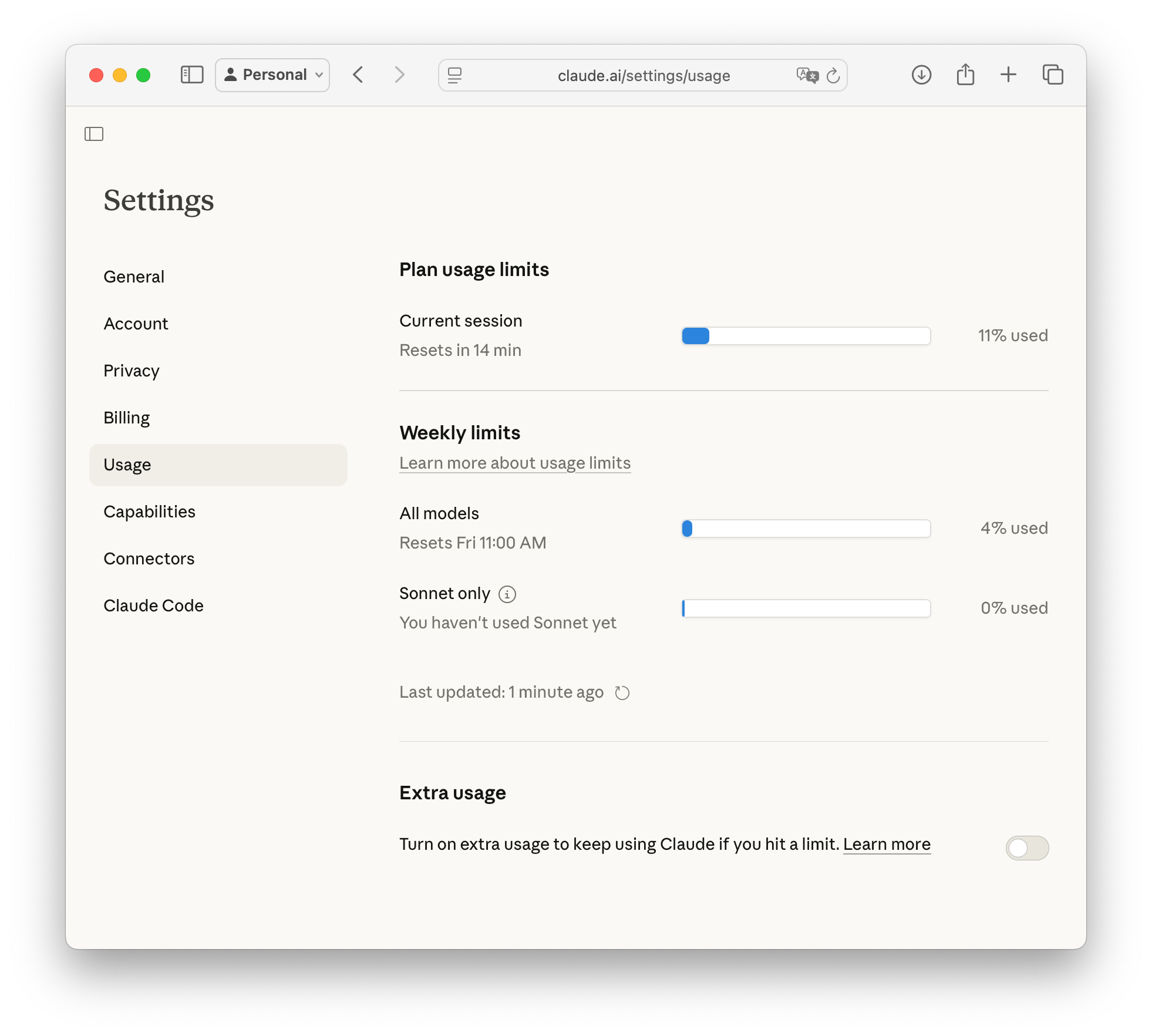
Let me start by telling you that it’s not just one limit. There are several that depend on which models you’re using. Remember: Opus, Sonnet, and Haiku.
The first bar you see is “current session,” which basically shows the percentage of interactions you’ve had against the limit within a four-to-five-hour window. In my case, I’ve used 11% of my plan’s limit and it resets in 14 minutes. So I’ve got plenty of room to keep chatting. It’s happened to me several times that I’ve hit the limit in the middle of a conversation. That’s an unmistakable sign that it’s time to upgrade.
The other two bars are the weekly limits: the first gives you a usage limit that covers all models (Haiku, Sonnet, and Opus) and resets once a week. I’ve never hit that limit, and I use Claude like there’s no tomorrow. The second is a weekly limit for the Sonnet model specifically, which is the most versatile one (I’ve never hit that limit either).
Now let me tell you about the plans.
Free plan: perfect for seeing how it responds, though the limits are tight and you only have access to the Sonnet and Haiku models (you need to upgrade to use Opus).
Pro plan ($20/month): limits five times higher than the Free plan, plus you get access to the Opus model. It’s ideal for most professionals. I don’t think you’ll hit the limit very often. In fact, it’s the plan I used for over a year before switching to the Max plan.
Max 5x plan ($100/month): this plan has limits twenty-five times higher than the Free plan. It’s for intensive Claude use. Since I’ve been on it, I’ve never hit the limit.
Max 20x plan ($200/month): One hundred times the capacity of the Free plan, for people who are on another level in usage and wallet.
There are also plans for teams and enterprises, with admin controls and additional security layers.
My recommendation…

Seriously though, I recommend you start with the Free plan and if you like it, jump straight to Pro. If at some point you realize you need higher limits, you can think about switching to Max, though I’ll admit it’s not easy going from $20 to $100. Now, remember you can always go back to a lower plan, so if there’s a particular month where you need to use Claude more, you can bump up and bring it back down the next month.
One last option is to activate “extra usage.” Basically you give them your credit card so that when you hit the limit, they start charging you per use.
Now that you know the plans, you’re probably wondering…
How do we get Claude to know us?
This is important for Claude or for any other AI assistant. It’s impossible to get the most out of it if it doesn’t know who you are.
Think about it for a minute: this is a mass-market product that answers questions for millions of people every day. If it doesn’t know what makes you different from the rest of the users, what it’s going to give you is an average response. And for that, any assistant will do. Period.
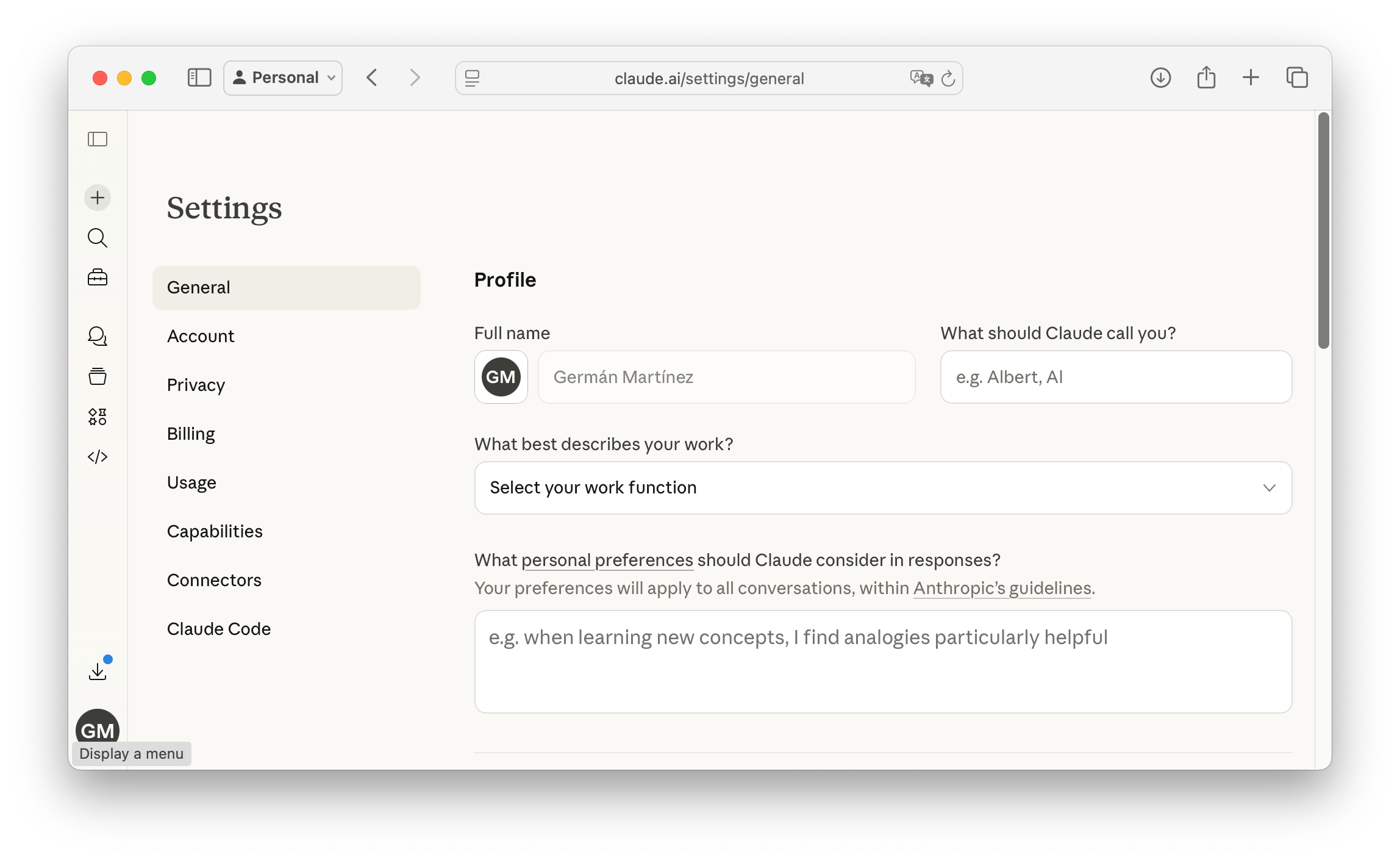
Luckily, we have an option to tell it who we are and how we want it to interact with us. In Settings → General → Profile, you can tell it everything from what you want it to call you to your darkest desires who you are, what you know, and what you do.
On top of that, Claude has memory. Meaning it can remember things about you that you’ve told it in past conversations. To find the memory settings, go to Settings → Capabilities → Memory.
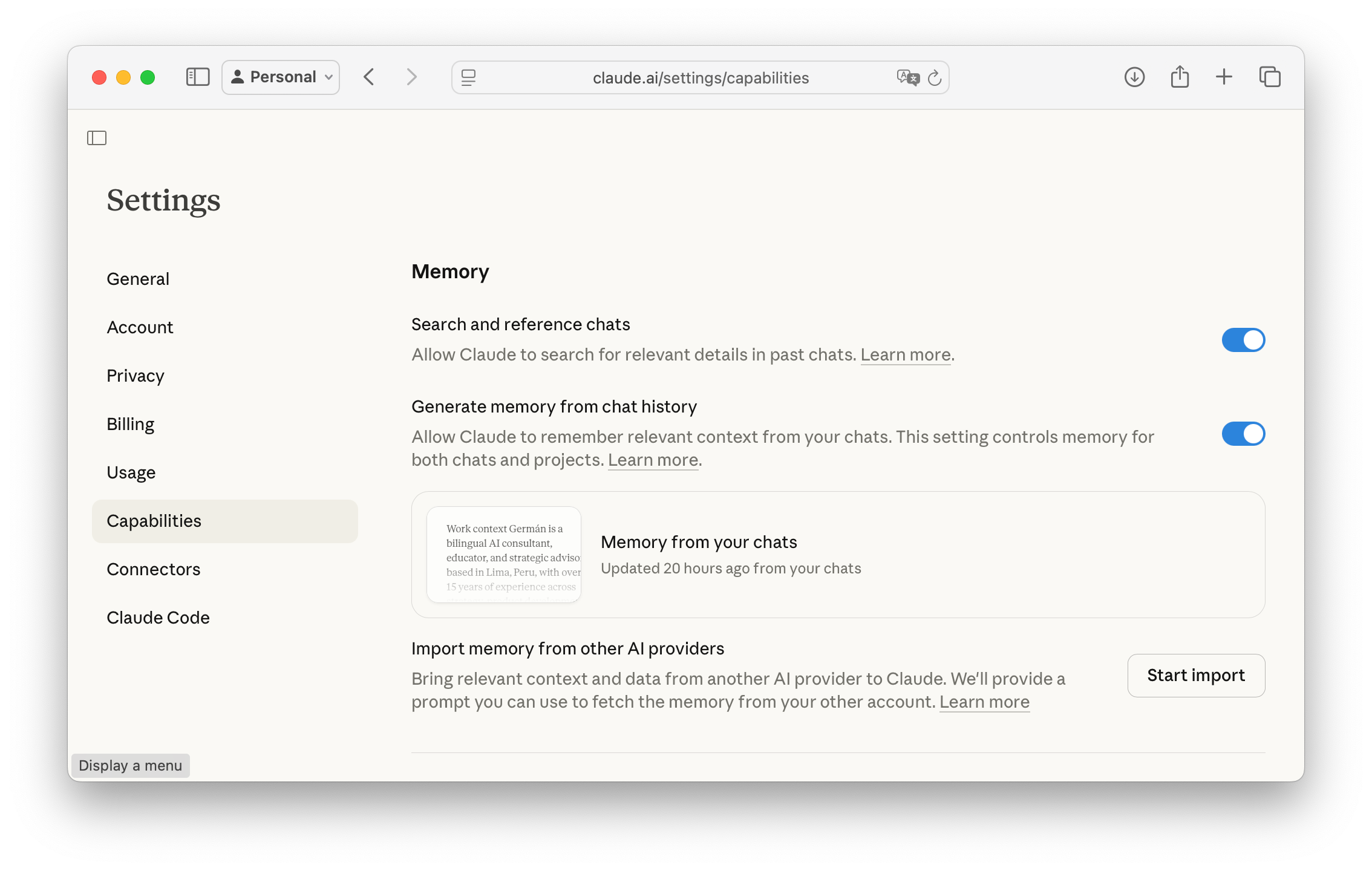
Claude’s memory comes from two places. The first comes from being able to search for details in past chats. You activate it with the first toggle you see above.
The second toggle has the more interesting memory function. It generates a memory document based on your chat history. Meaning it decides what’s most important from all the conversations you’ve had with it, makes a summary, and uses it as memory for future conversations with you. If at any point you want to edit that memory document, just click on “Memory from your chats” and you’re done. Plus, if you want Claude to remember something specific, just tell it and it’ll take care of adding it to its memory.
Also, since a lot of people are switching to Claude, the Anthropic team has developed a memory import tool so you can bring over data from other providers (cough, cough, ChatGPT, cough).
And if you’re worried about a conversation ending up in its memory, you have the option to have conversations in incognito mode. Just click on the little ghost icon at the top right of the chat window, and that’s it.
OK, now that Claude knows us, we can start getting the most out of it.
Projects
A project is a space where you can have focused chats, and all these chats share the same instructions, their own documents, and memory. To create one, go to Projects in the left sidebar, and after giving it a name you’ll need to do two things.
The first is to give it the project instructions. That means telling Claude how you want it to work when you talk to it (in chats within that specific project).
The other thing you need to do is create its knowledge base, which is a fancy way of saying you can upload documents to the project and Claude will have them at hand when responding.
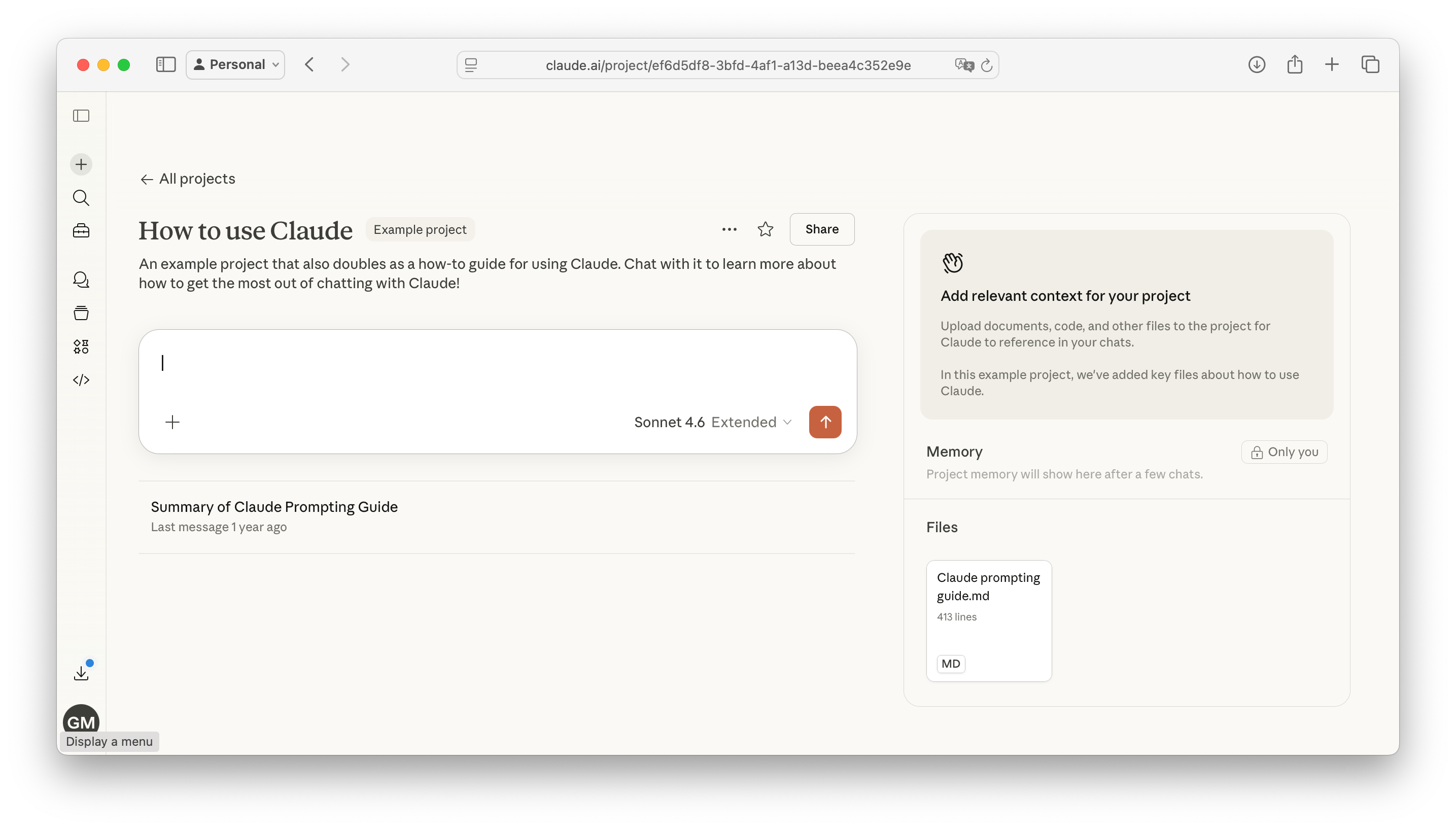
To give you an idea of how cool projects are, imagine you’re a macroeconomics expert who loves making ceviche. If you used your assistant for everything, its memory might get a bit confused, don’t you think? That’s where projects come in.
You could have one project with all your macroeconomics knowledge and another where you upload several cookbooks and dedicate yourself to creating new ceviche recipes. By the way, the best ceviche is octopus, and in a close second place is grouper (we call it “mero” here in Perú).
Remember when we looked at the chat interface and there was a “+” menu? Well, there’s an “Add to project” option that lets you move any chat to a project and keep everything organized 🙂.
Plus, each project has its own memory, separate from the general memory, so what Claude learns about you in a project stays in the project (nobody wants octopus ceviche references in their macroeconomics chats, right?)
And if you liked projects, wait until you meet…
Skills
This is one of the most powerful features Claude has, but also one of the most hidden. A lot of people don’t even know it exists. Let me tell you: a skill is a way to teach Claude to do things it didn’t know how to do, permanently.
If you’ve seen The Matrix, you probably remember this scene:

Well, that’s more or less how I imagine it works :P (if you haven’t seen it, shame on you!).
Let me start by telling you that Claude already comes with some pre-installed skills that activate automatically.
For example, if you ask it to create a PowerPoint presentation, an Excel file, a nicely formatted Word doc, a PDF, etc., Claude does it and gives it to you ready to download. To do this, Anthropic’s assistant realizes, let’s say, that it needs to create an Excel file and activates its Excel creation skill. The same thing happens with the other file types.
But there’s more. Skills aren’t just for creating files. They’re also super useful for getting Claude to act a certain way or follow specific procedures. Meaning you could create a skill so Claude knows your analysis process, so it always uses the same format when giving you a ceviche recipe, or whatever you can think of. The sky’s the limit.
To create a skill you need to create a file called Skill.md with instructions in a specific format using YAML and blah, blah, blah… but the reality is that you don’t need to because Claude can do it for you!
You just need to tell Claude that you want to create a skill, and after a nice conversation, your new favorite assistant will have that skill ready to use whenever needed. For example, one of the skills I’ve made lets Claude create documents with the colors and typography of aprendiendoIA. Before having this skill, the documents Claude created were well formatted but didn’t have my design. Now it simply uses that format every time I ask for a document.
You can view and edit your skills in Customize → Skills in the sidebar.
And as if skills weren’t enough, let me introduce you to…
Artifacts
What if I told you that Claude can not only create documents but present them right there in the chat? And what if on top of that I told you it’s not just documents, but web pages, interactive charts, diagrams, and even fully functional web applications?
Well yes, that’s exactly what I’m telling you, and let me add that it not only lets you create them but publish them too! They’re called artifacts and they’re wonderful.
To create an artifact you first need to activate them in Settings → Capabilities → Visuals. Do it now because we’re about to dive into the beautiful world of Claude’s artifacts ;)
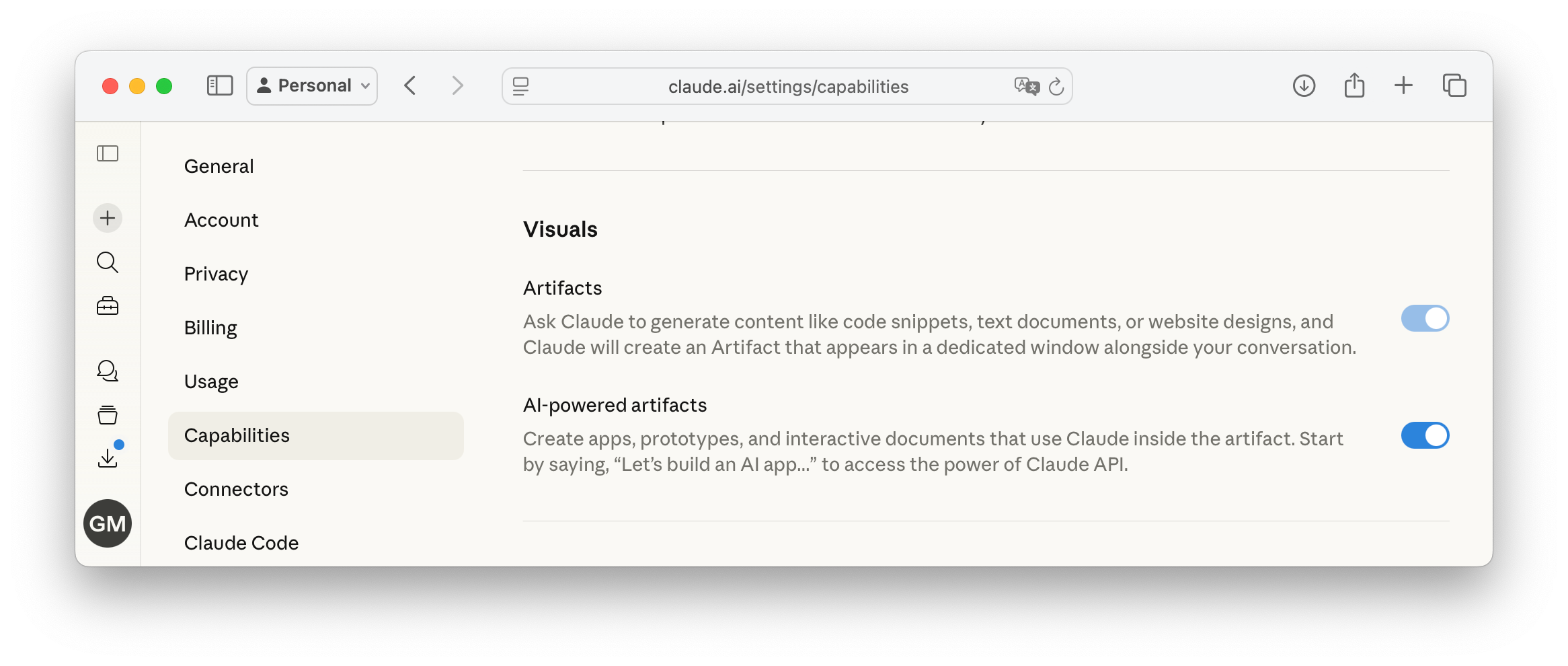
If you’ve already activated the feature, now we can start creating our first artifact… it’s true that I could start by telling you to make an interactive chart of macroeconomic indicators… but honestly, that’s not my style. Let’s make a drum machine instead!
All you have to do is tell Claude you want to make an artifact and describe what you want to create. In my case, I just said:
“I want to create an artifact. Let’s make a drum machine.”
With that, after a couple minutes of thinking and a couple of tweaks, we got this:
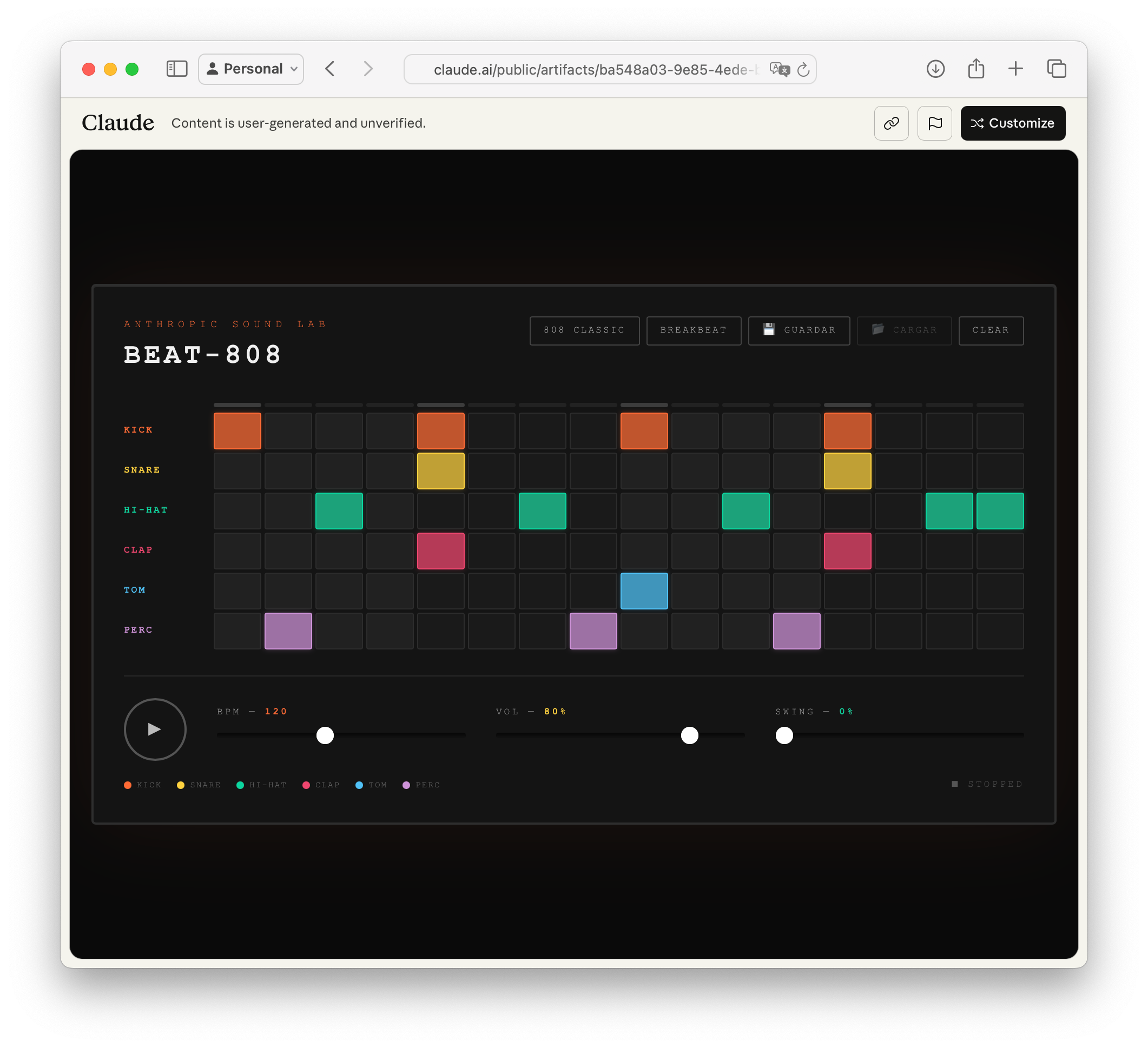
And it's not just for me. Claude lets me make the artifact public so everyone can enjoy it. So go ahead and give my beatbox made with Claude a try 😉.
On top of that, you can “remix” my app using Claude to create your own version.
But there’s another type of artifact you can create, and this one is even more powerful. Its nickname is Claudeception (like the movie Inception… which I hope you’ve seen… if not… shame on you!).
These artifacts are special because they’re applications that use artificial intelligence inside. They connect with Claude to work and do their thing in real time. Now you know why we call it Claudeception (it uses Claude inside Claude).
You could use it to create a language tutor your way, or a chatbot specialized in whatever topic you want (did someone say ceviche?). All without writing a single line of code… But why give examples when we can make one?
How about we make a crossword puzzle creator? You give the AI a topic and it gives you a crossword to play.
You can say something like:
“I want to make a Claude artifact that uses AI to create a crossword puzzle. The user gives it a topic and the AI creates it.”
I recommend using the Opus model for this. Claude will think for a few minutes, maybe ask you a couple questions, and before you know it you’ll be trying to solve an AI-created crossword puzzle.
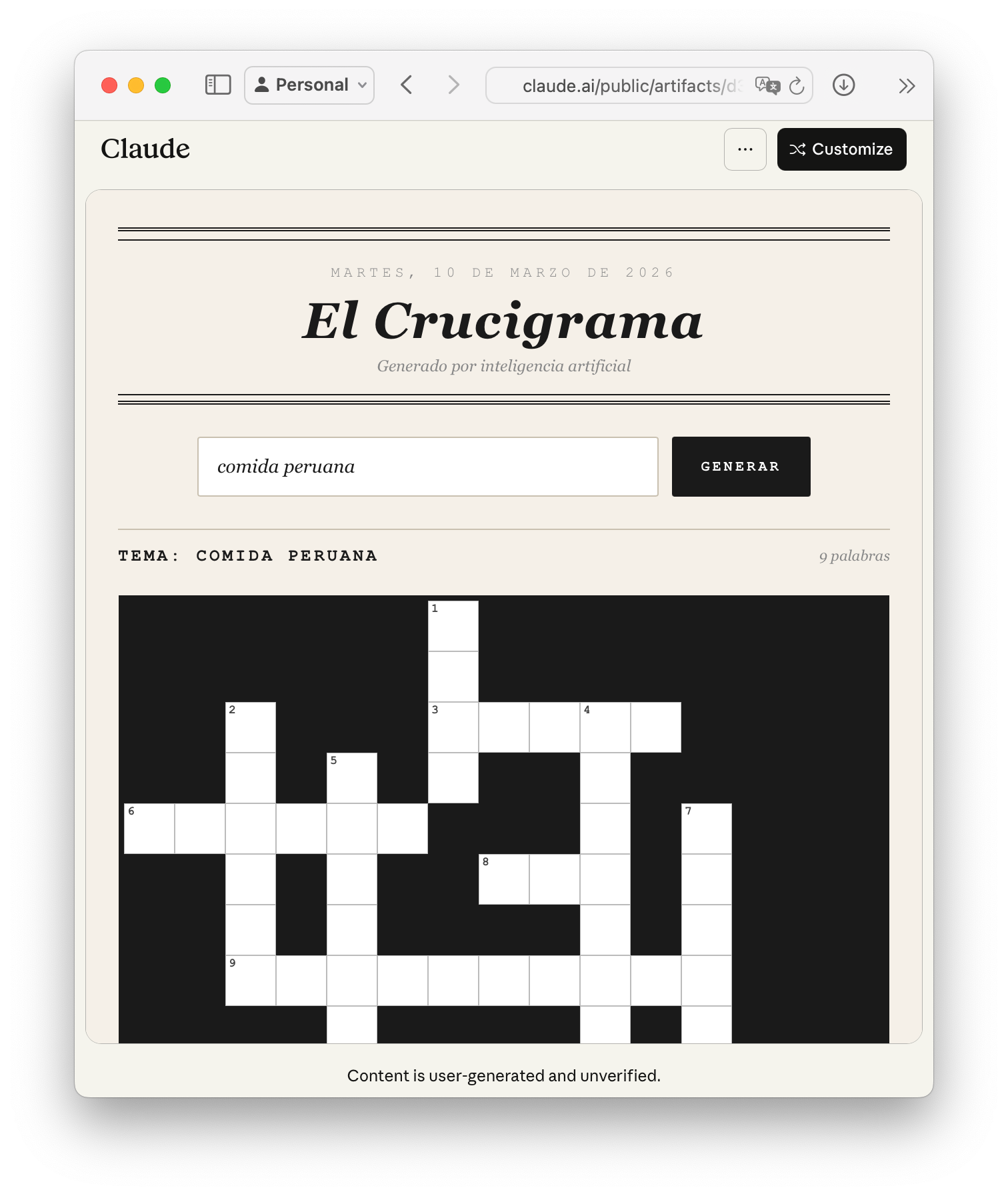
Try it yourself here. Of course, you’ll need a Claude account to use it. Don’t worry, when you create and share one of these artifacts, the people who use it don’t consume your Claude usage quota. That’s why you need an account to view this type of artifact. I imagine if you’ve made it this far you already have one. Just keep in mind that using AI-powered artifacts counts against your plan’s limit, so don’t go overboard :P
Another interesting thing about all artifacts is something called persistent storage, which means you can use an artifact, close the browser, and what you did in that artifact stays saved.
One last thing about artifacts. Anthropic maintains a really nice catalog, give it a look.
When Claude leaves the chat window
So far we’ve seen a lot of what our new favorite assistant can do inside a chat. But there’s no way our AI assistants are going to stay trapped in a chat, right? That’s the basic premise of any apocalyptic sci-fi movie, and Claude can’t be left behind.
In this section I want to tell you about three things: how Claude connects with other apps, how it has extensions that work inside other programs like Chrome, Excel, or PowerPoint, and finally about something called Cowork, which lets Claude control your computer… Duuuun!
Let’s start with connectors: these allow Claude to interact with external apps like Gmail, Google Drive, Miro, Canva, Notion, Slack, and a couple hundred other apps. To connect your favorite apps, go to Customize → Connectors in the sidebar.
There you search for the app you want to connect to, grant access, and done. Now Claude can interact with that app. And don’t worry about Claude making a mess in your apps. Before taking any action, it explains what it’s going to do and asks for permission. Though if you want, you can configure trusted tools to work without needing your confirmation.
Now let’s talk about Claude’s extensions: right now Anthropic has an official extension for Chrome that turns it into an agent. You tell it what to do and Claude does it, in Chrome.
For example, I went to aprendiendoIA, my main substack (in Spanish), and asked it to open my post AI Crash Course, which by the way is one of the best posts I’ve written (and I’ll soon translate to English). Claude made the plan and asked me to confirm.
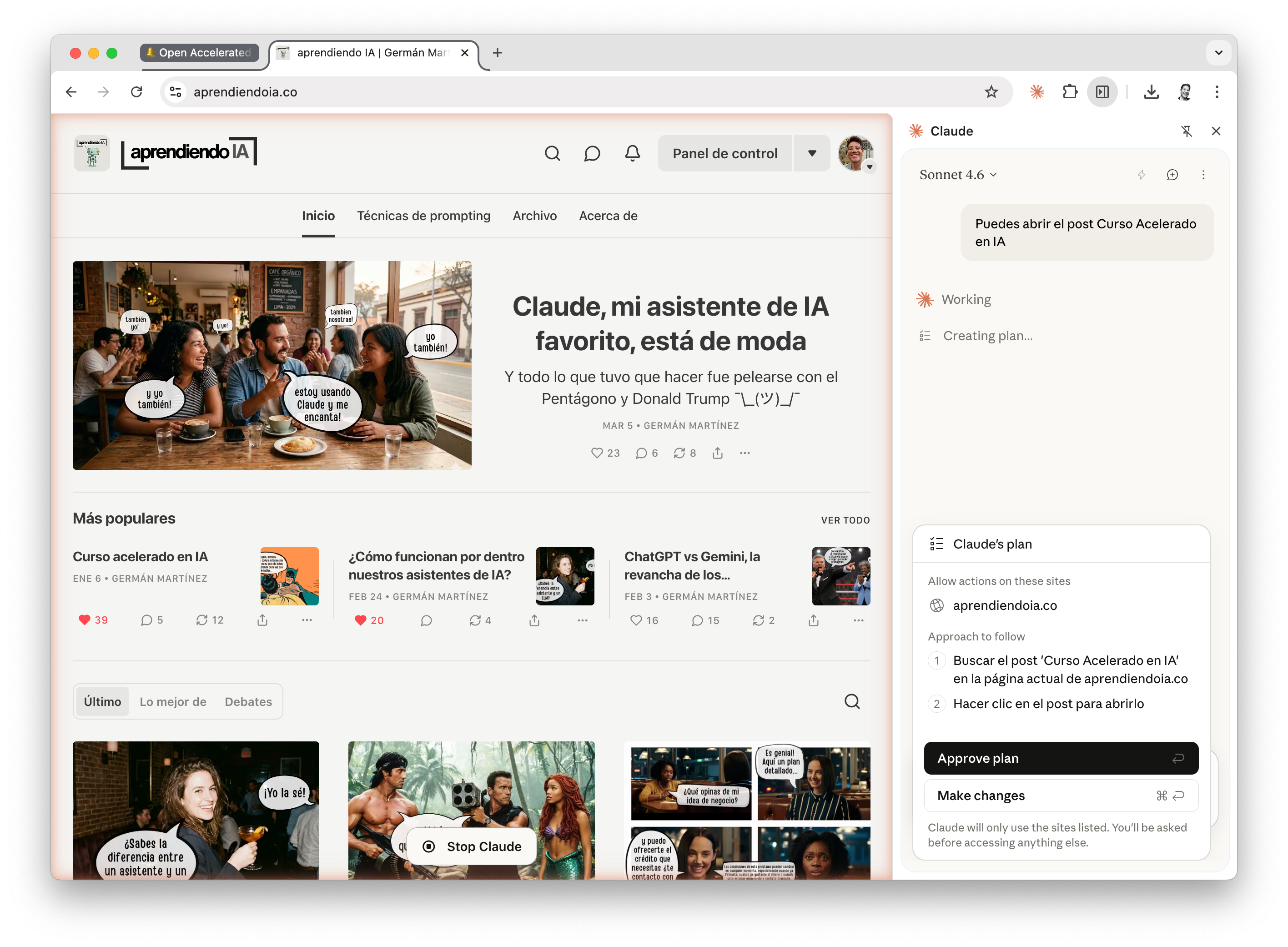
Then it opened the post I’d asked for. Of course that’s just an example. Imagine having Amazon open and asking it to create a shopping list. To be honest, I don’t use it. I use Safari, not Chrome (as any self-respecting Mac user does).
Apart from Chrome, there are also official extensions for Excel, PowerPoint, and Slack. Basically it puts a Claude window alongside you while you use those programs and lets the AI help you with your work. I was once fighting with an Excel model and ended up asking Claude to do it. It did a great job. In five minutes I had a spreadsheet ready that probably would have taken me a couple hours. We’re living in the future.
Now let’s talk about Cowork: to use it you need the Mac or Windows desktop app. That’s where you’ll find the Cowork tab.
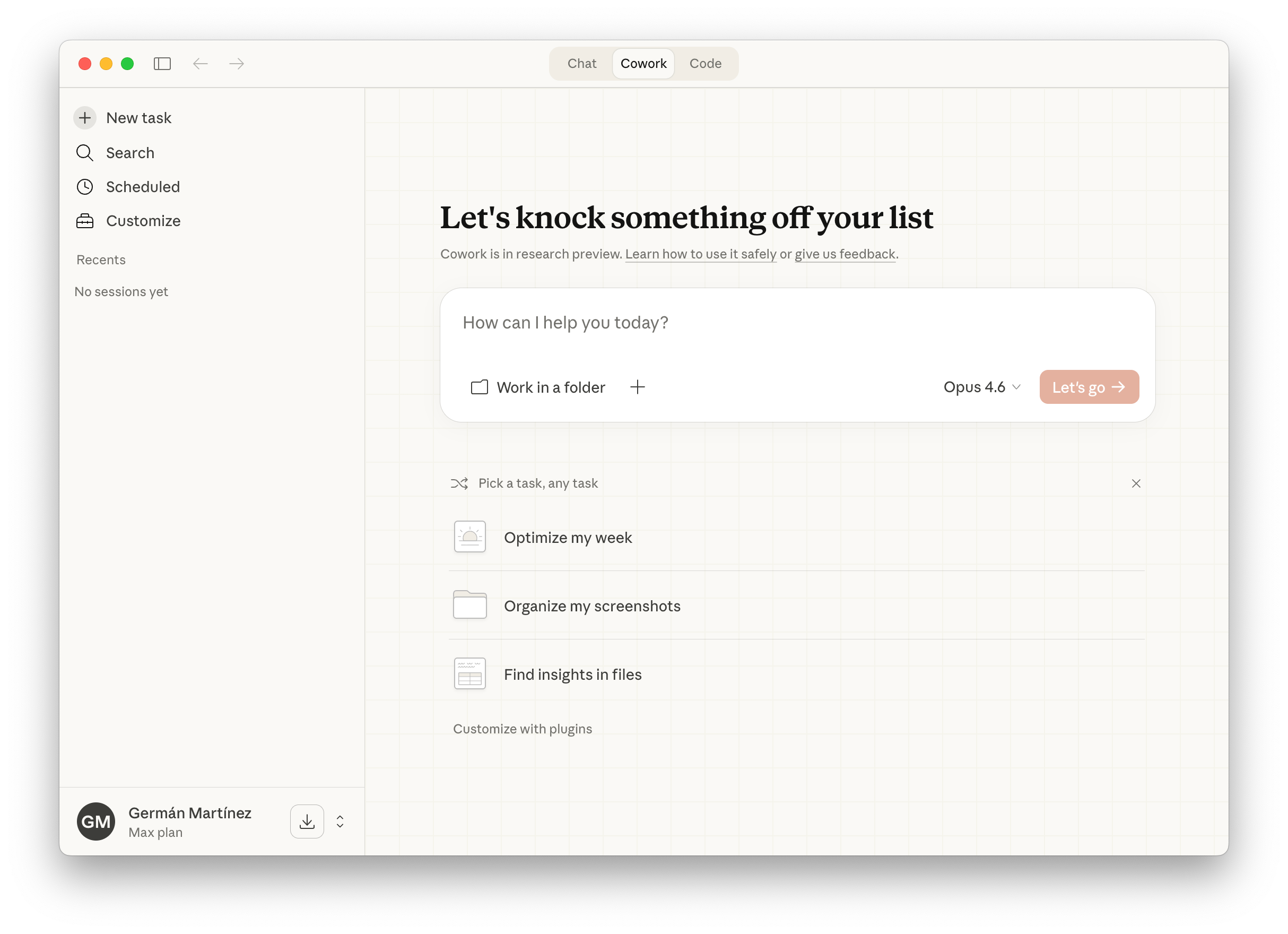
With Cowork you can give Claude tasks and it gets to work on its own. Obviously, before doing anything it defines a plan, tells you what it’s thinking, and executes it. Of course it’ll ask for permission to access whatever folders it needs.
For example, one of the things I asked it to do was help me organize my chaotic Downloads folder (with thousands of files). It helped me classify them and delete the files I didn’t need. Another thing I did was give it access to the folder where I have the (very rough) drafts of a book I’m writing about AI and asked it to create a PowerPoint presentation. It did it without a hitch.
You can also schedule tasks to repeat daily, weekly, or, I don’t know, the third Saturday of every odd month. ¯\_(ツ)_/¯
Note: Yes. It’s true, I’m writing a book, and now that it’s public I think I’m going to have to finish and publish it. What did I get myself into?
Why does Claude feel different?
We’ve spent a good while talking about Claude (and I hope also using it). I imagine you’ve already noticed that its way of interacting with us is different from the rest of the assistants. I don’t have any other way to describe it than to say it feels “more human.”
This happens because Claude was trained with something Anthropic calls Constitutional AI.
Basically, they gave it a constitution (the kind with principles and values) and used that document to teach it how to respond. During some point in their model training, every time it generated a response, it compared it against that constitution, and if the response didn’t follow its principles and values, it changed it and learned along the way.
That way, by the end of training, the Anthropic team made sure their assistant’s responses were aligned with that document. This constitution has four priorities: safety, ethics, following Anthropic’s guidelines (for sensitive topics), and being helpful, and it applies them in that order of priority.
Now that I think about it, they remind me of OCP’s four directives in the movie Robocop: don’t lose the public’s trust, protect the innocent, uphold the law, and never oppose an OCP officer. (If you’ve never seen Robocop… shame on you!)

And here’s where the controversy starts. Anthropic says Claude is a “genuinely novel entity” and leaves open the question of whether an AI could have some form of consciousness. They’re not saying Claude is conscious, but they’re not saying it’s just a piece of software either.
There are some criticisms of this constitution that I think are worth mentioning:
It’s a corporate document that Anthropic can change at any time, affecting how their assistants behave.
Calling it a “constitution” gives it an air of legality and legitimacy that it doesn’t have.
Regarding consciousness, it’s often said that the constitution gives Claude many human qualities (anthropomorphism) and that this could be dangerous for users, especially those with emotional instability, because they could end up forming emotional bonds with a machine.
I’m not an expert in language model training, so I can’t tell you if this is the best way to train an AI. What I can tell you is that the result of that training is, by far, the best assistant I’ve ever used.
Fun fact
You know why Claude is called Claude?
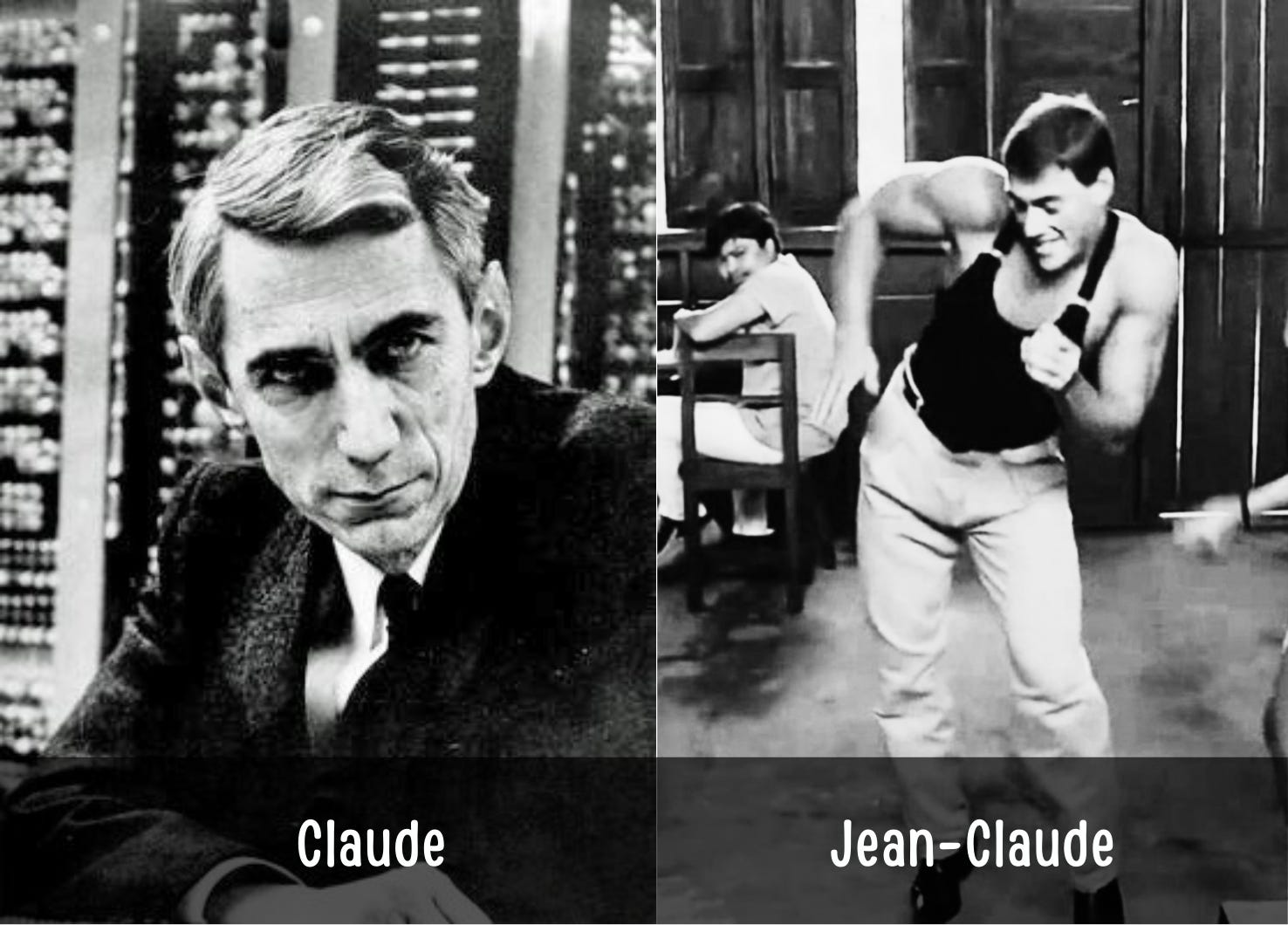
I always thought it was in honor of the great Jean-Claude Van Damme :P, but it turns out I was wrong. It’s actually named after Claude Shannon, a mathematician considered the father of information theory. Well, both have made great contributions to humanity. Shannon with his publications that laid the foundations of modern computing theory, and Van Damme with movies like Kickboxer, because… you’ve seen Kickboxer… right? shame on you!
What ChatGPT does that Claude can’t
All AI assistants are different, and even though Claude is my favorite, I have to admit that OpenAI’s also has its strengths. In fact, I’m subscribed to both.
Here are the main differences:
Claude doesn’t generate images. ChatGPT can create images and videos.
ChatGPT’s voice mode is far superior to Claude’s, in case you like going for walks while chatting with your assistant.
With ChatGPT you can create custom GPTs, which are like specialized mini-assistants you can create and share. In a way, Claude makes up for it with its skills and projects.
If you want my advice, use both. If you can only pick one, stick with Claude, unless the images, video, and voice thing is a deal breaker.
And if you’re hesitant about switching from ChatGPT (or any other assistant) to Claude because they already know you and know how to respond to you, let me tell you that Anthropic just released an import tool that lets you transfer all the memories and data you currently have in your assistant over to Claude (and it takes less than a minute). You’ll find it in Settings → Capabilities → Memory (Import memory from other AI providers). No more excuses.
Claude Code
One more thing. If you’re a programmer, or know one, let me tell you that Claude has the best coding assistant out there. Basically, you describe to Claude what you want and it builds it (I know, it’s not thaaaat simple, but I think you get the idea).
I’m mentioning it because it’s one of the most used features by development teams, and this guide wouldn’t be complete without talking about Claude Code. Just know that it can burn through an absurd amount of your usage quota. Look what a good friend told me a couple hours ago:
By the way, Claude launched 4 workers in parallel and blew through everything in 5 min hahaha. The 5-hour limit, in 5 min
– Anonymous (originally in Spanish)
So be careful when you use it 😉
And that was Claude
I think I’ve covered a lot and I hope you find this post useful. If you know someone who wants to use Claude, share this post with them. And if you know someone who works at Anthropic, send it their way too. I think they might like it :P
That’s it. All the best from Lima - Perú, see you in the next one.
G